Skip the second download
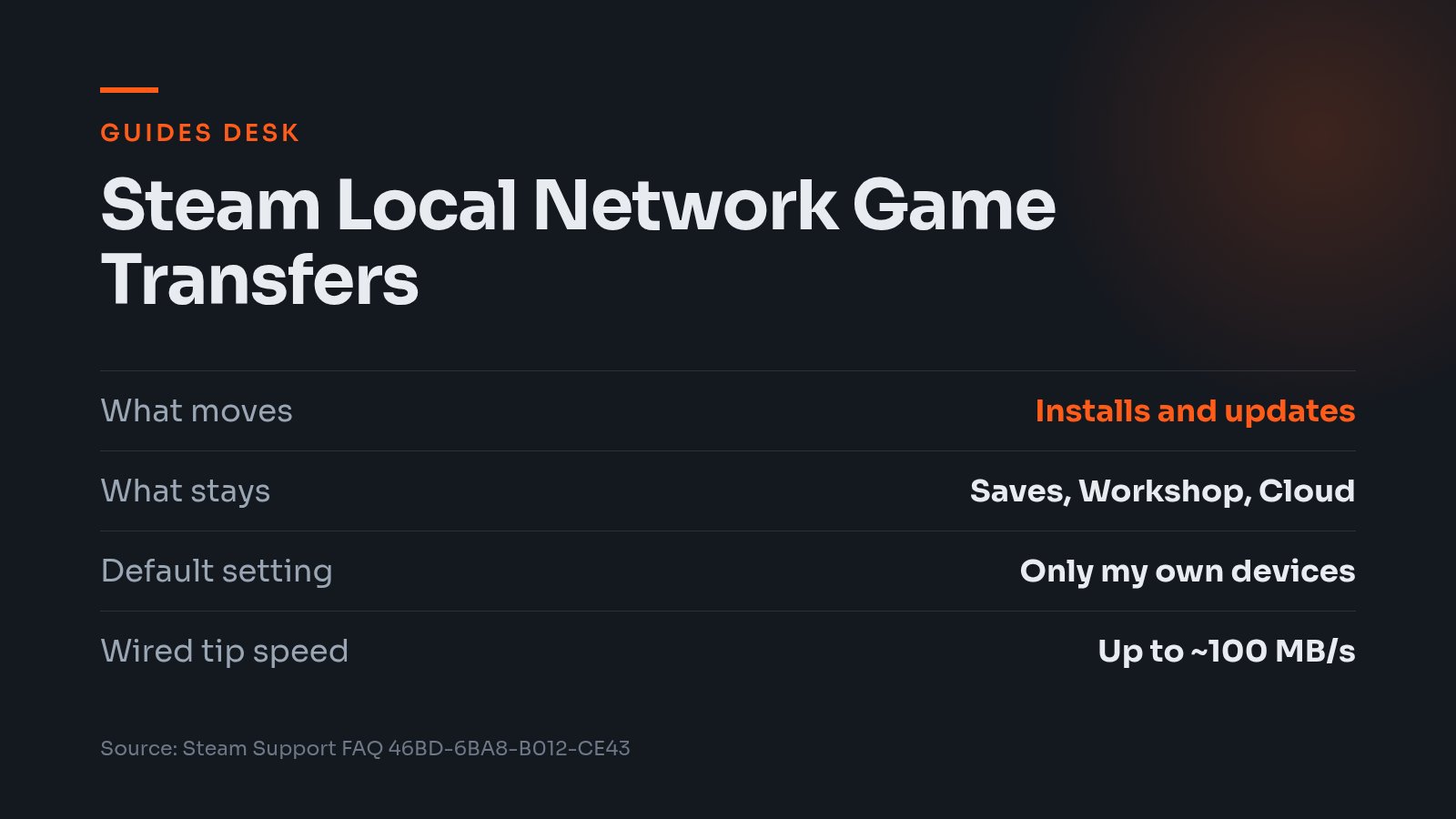
What this fixes: a big game you already installed on one machine being pulled down from the internet all over again on another. Who it’s for: anyone with a Steam Deck and a PC on the same home network. Steam local network game transfers let one device copy the install or update files straight to the other over your LAN, and it’s the setup we think most Deck owners still skip.
Valve’s own Steam Support FAQ describes the use case plainly: once a game is installed on one PC, other PCs or a Steam Deck on the same network can install or update it by transferring files from that machine. It helps you stay below ISP monthly transfer limits, and Valve says a modern PC can easily transfer game content at 100MB/sec over a wired network connection. That’s Valve’s example for a wired setup, not a promise for your router or Wi-Fi.
Pick the right setting
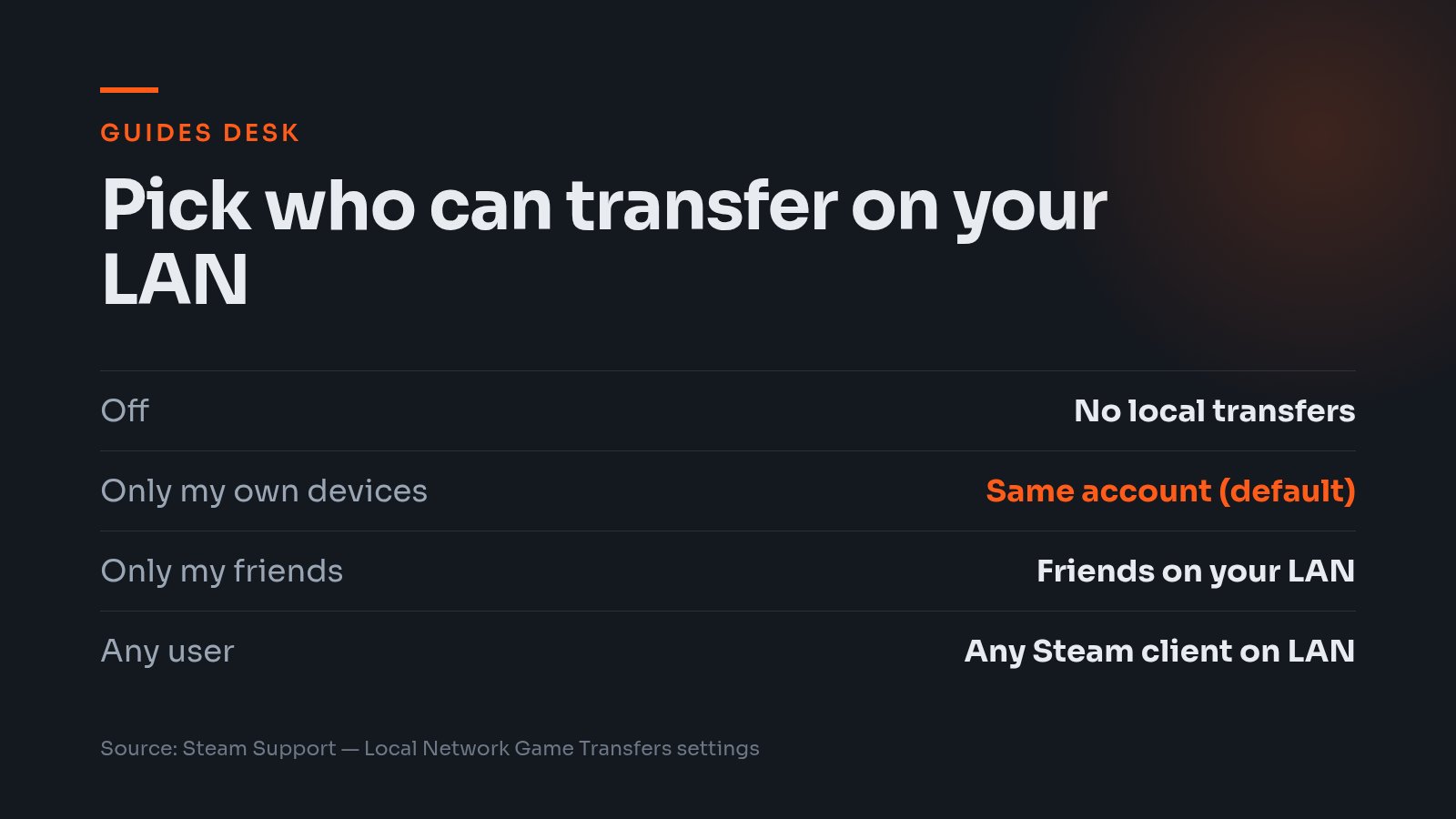
There are four settings, and Valve says they’re bi-directional: to allow local transfers in, local transfers out are automatically enabled. The default is “Only my own devices”, so a Deck and a PC signed into the same account may already be able to see each other.
| Setting | What Valve says it allows |
|---|---|
| Off | This client won’t look for or allow local transfers, in or out. |
| Only my own devices | Transfers to and from other devices logged into your own Steam account (the default). |
| Only my friends | Transfers to and from devices your Steam friends are logged into on your LAN. |
| Any user | Transfers to and from any device running Steam on your LAN. |
Our view: leave it on the default. “Only my friends” and “Any user” both let other people on your LAN find out what games you have installed, Valve, and a household with one account on two devices doesn’t need either.
What has to be true first
Any Steam client or Steam Deck can receive game content from another client on its LAN, but Valve lists conditions that have to be met. Work down them before blaming the network:
- Both Steam clients must be online and see each other directly on the same LAN. Neither can be in offline mode.
- The settings on both devices must allow a transfer. If both are set to friends only, you must be Steam friends.
- The sending client must be idle, with no downloads or games running.
- The game must be released to the public and playable by both Steam users. Preloads don’t qualify.
- The game must be up to date on the PC sending the files.
- The sender must be a Steam Deck or a PC in Steam desktop mode. PCs in Big Picture mode and custom launchers can’t transfer files out.
Both clients also need to be updated. PC Gamer reported on 28 July 2026 that transfers had been falling back to internet downloads until Valve shipped a fix to the stable Steam Client, and that the feature may not work between devices on different client versions. If one machine is on a beta build, our guide to joining the Steam Client beta and backing out covers getting it back in step.
Open the ports, then watch Downloads
Valve says the transfer itself runs on TCP port 27040, which needs to be allowed by local firewall software. UDP ports 27031-27036 also need to be open so the clients can discover each other. If Steam keeps going to the internet, check those first, and adjust the firewall’s permissions rather than switching your protection off.
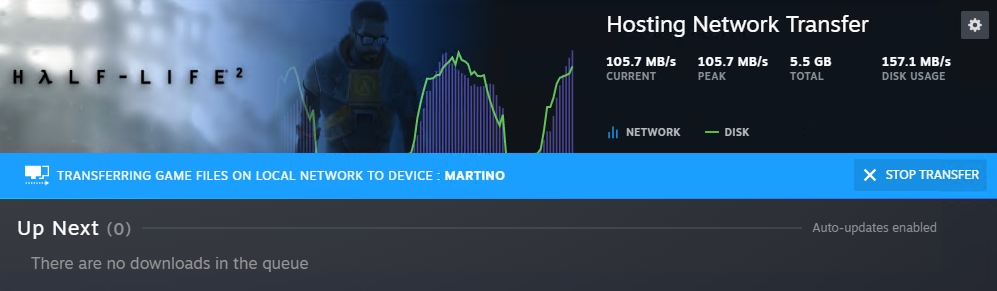
Start the install or update on the receiving device. Valve says active local network game transfers are called out on the Download page; HandheldAtlas, which walks through the same steps for handhelds, calls it the Downloads page on the receiving device. If the connection drops or the local content runs out, Steam falls back to the public content servers for the remainder, per Valve.
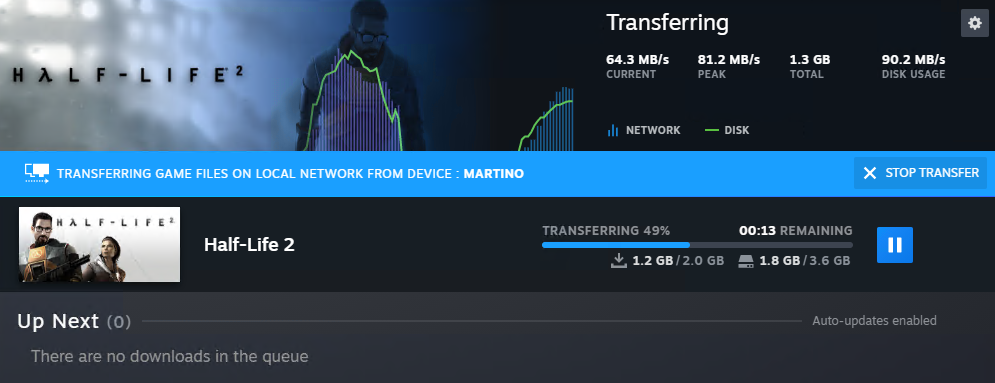
Expect the sending PC to work for it. Valve warns that the hosting client generates disk and CPU load during the transfer, so don’t run anything intensive there.
What doesn’t come across
This is an installation shortcut, not a migration tool. Valve says only the original game’s file content is transferred: no local save games or configuration files, and it excludes Steam Workshop, Steam Cloud and Steam Shader files. The content is compressed but not encrypted, and Valve says all data received is verified, with invalid or corrupt data ignored.
After the copy finishes, open the game on the Deck and check your saves, controls and settings, as HandheldAtlas suggests. If you’re also tuning your Deck, our look at Steam’s beta client and friend notifications on Deck is a quick companion read. We’d set this up once, on the default setting, and let every future big update ride the LAN.