
Check it before the update does
What this fixes: not knowing whether Windows’ kernel protection is on, or why it won’t switch on. Who it’s for: PC gamers who have heard that Memory integrity costs frames and want to decide with facts.
Microsoft says that beginning in October 2026, Windows quality updates will start turning Memory integrity on for eligible devices. If Virtualization-based Security (VBS) isn’t already enabled, the same updates will enable that too. That’s from a 1 September post by Peter Waxman on the Windows IT Pro blog, and it means a setting many gamers have ignored (or deliberately switched off) is about to matter on more machines.
Windows checks readiness first. Microsoft lists hardware capabilities, compatibility and performance considerations as the signals. The post is also clear about the opt-out: existing administrator and user decisions and policies remain in effect, so devices where Memory integrity has already been disabled “won’t be automatically changed by this rollout.” Tom’s Hardware’s write-up reads it the same way: if you opted out before, you stay opted out.
How to see whether it’s on
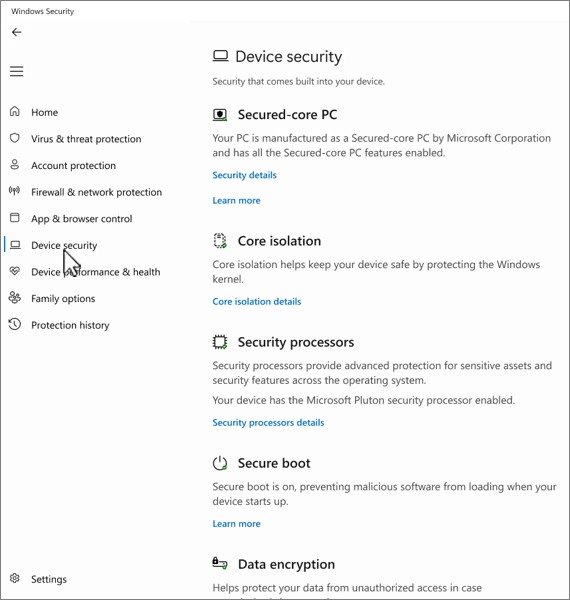
Memory integrity, also known as Hypervisor-protected Code Integrity (HVCI), sits under Core isolation in the Windows Security app. Microsoft’s support page gives the path:
- Open the Windows Security app and select Device security.
- Under Core isolation, select Core isolation details.
- Find Memory integrity. The toggle shows On or Off, and you can flip it there.
Microsoft notes that the features on the Core isolation page vary with your version of Windows and the hardware installed, so don’t worry if your list of options looks different from a friend’s. A shortcut: at the bottom of the Device security page, “Your device meets the requirements for enhanced hardware security” means the device has standard hardware security and Memory integrity turned on.
When it refuses to turn on
Two things stop it, according to Microsoft. The first is firmware: to use Memory integrity you must have hardware virtualization enabled in your system’s UEFI or BIOS. Microsoft’s page doesn’t name the menu entry, and boards differ, so check your board or laptop maker’s documentation.
Warning: changing UEFI/BIOS settings can leave a PC unable to boot if you change the wrong thing. Change only the virtualization option, and note the original value first. If you’ve never been in there, our Resizable BAR BIOS guide is another trip to the same place.
The second is drivers. If Memory integrity fails to turn on, Windows may tell you an incompatible device driver is installed. Microsoft’s advice is to check with the device’s manufacturer for an updated driver. If there isn’t a compatible one, you might be able to remove the device or app that uses it. The same message can appear if you install a device with an incompatible driver after turning the feature on; Microsoft’s answer is the same, including waiting to install that device until a compatible driver exists.
A related prompt: if a Program Compatibility Assistant banner says a driver can’t load, or a security setting is stopping it, Microsoft says to check for updated drivers through Windows Update or Device Manager, then contact the hardware maker if nothing turns up. Tom’s Hardware adds that Microsoft’s own documentation lists problems ranging from malfunctioning software to incompatible gaming anti-cheat. If it’s a graphics driver that looks stuck, our clean GPU driver reinstall guide covers starting fresh.
The gaming-performance question
Here is the part gamers argue about. Tom’s Hardware reports that Microsoft acknowledged in 2022 that Memory integrity and Virtual Machine Platform could affect gaming performance on some Windows 11 configurations, and advised gamers who prioritise performance that they could temporarily turn these protections off while playing, while warning that doing so reduces security. Tom’s adds that Microsoft’s gaming guidance has continued to say so. We’re relying on Tom’s account for that guidance here.
Neither Microsoft nor Tom’s gives a figure for the hit, so we won’t either. What Tom’s says Microsoft does state is that the cost depends on hardware: Memory integrity performs better on newer processors with features built to accelerate the isolation, and older CPUs that rely on software emulation can see a larger drop.
The trade-off, plainly: switch it off and you may gain performance on some setups, but you lose the protection. Microsoft’s support page describes memory integrity as a guard in a locked booth; without it, “the security guard stands right out in the open” where an attacker can more easily interfere, making it easier for malicious code to get past. The feature exists to make it difficult for malicious programs to use low-level drivers to hijack your PC.
We’d leave it on. A protection Microsoft is now enabling by default on eligible machines shouldn’t come off because of a forum rumour. If a game stutters or runs slower after the change, measure it: run the same scene with the toggle On and Off, and only then decide whether the difference is worth the exposure. If a recent update is the suspect, read our guide on undoing a Windows 11 update before reaching for the uninstall button; it argues that should be your last resort.
The open question is how many gaming PCs get flagged as ready in the first place. Tom’s lists current requirements for automatic enablement on clean installs, including an 8th Gen or newer Intel processor for Windows 11 22H2, an AMD Zen 2 or newer processor, 8GB of RAM, a 64GB SSD, compatible drivers and enabled hardware virtualization. Check the toggle now, while the choice is still yours.
Sources checked 1 November 2026: Microsoft’s Windows IT Pro blog and Microsoft Support pages on Core isolation and the Device security page, plus Tom’s Hardware’s 2 September report.