Games breaking after updates
What this fixes: games that started crashing, refusing to launch or stuttering right after a Windows 11 update. Who it’s for: Windows 11 players on versions 24H2, 25H2 or 26H2 who have already updated the game and their graphics driver.
Verified against Microsoft’s support pages for uninstalling an update, pausing updates and recovery options, and the Windows 11 release health known-issues page as updated on October 13, 2026.
Removing an update feels decisive. It’s usually the wrong first move. Taking off a monthly security update undoes every fix in it, not just the change that broke your game, and Microsoft sometimes fixes the bug in the very next update. Work down this list and stop as soon as your game runs.
1. Find out which update you got, and whether Microsoft already knows
- Open Start > Settings > Windows Update > Update history. Note the KB number and install date of the newest quality update. You should see whether the crashes started the same day.
- Open Microsoft’s release health page for your Windows version (switch to your version in the left menu) and search the page for the KB number or the symptom.
- Check your game’s own patch notes or Steam news. Developers often confirm an update conflict before Microsoft does.
A current example shows why this step matters. Microsoft logged that some apps “which require the decoding of AC-3 (Dolby Digital) audio might close unexpectedly” after the September 22 preview update, KB5124010, and listed games among the affected apps. It marked the issue resolved by the October 13 security update, KB5127648. Anyone who uninstalled the preview to get their game back would have been better served by installing the next update.
Stop here if the known-issues entry says “Resolved”. Install the latest update from Settings > Windows Update instead of removing anything.
2. Look for a game-side fix or a workaround first
Update the game and verify its files. If the developer has published a workaround, use it before touching Windows. When Windows 11’s August security patch crashed ARC Raiders and THE FINALS, Embark Studios’ advice was to remove one conflicting third-party driver, not the whole update.
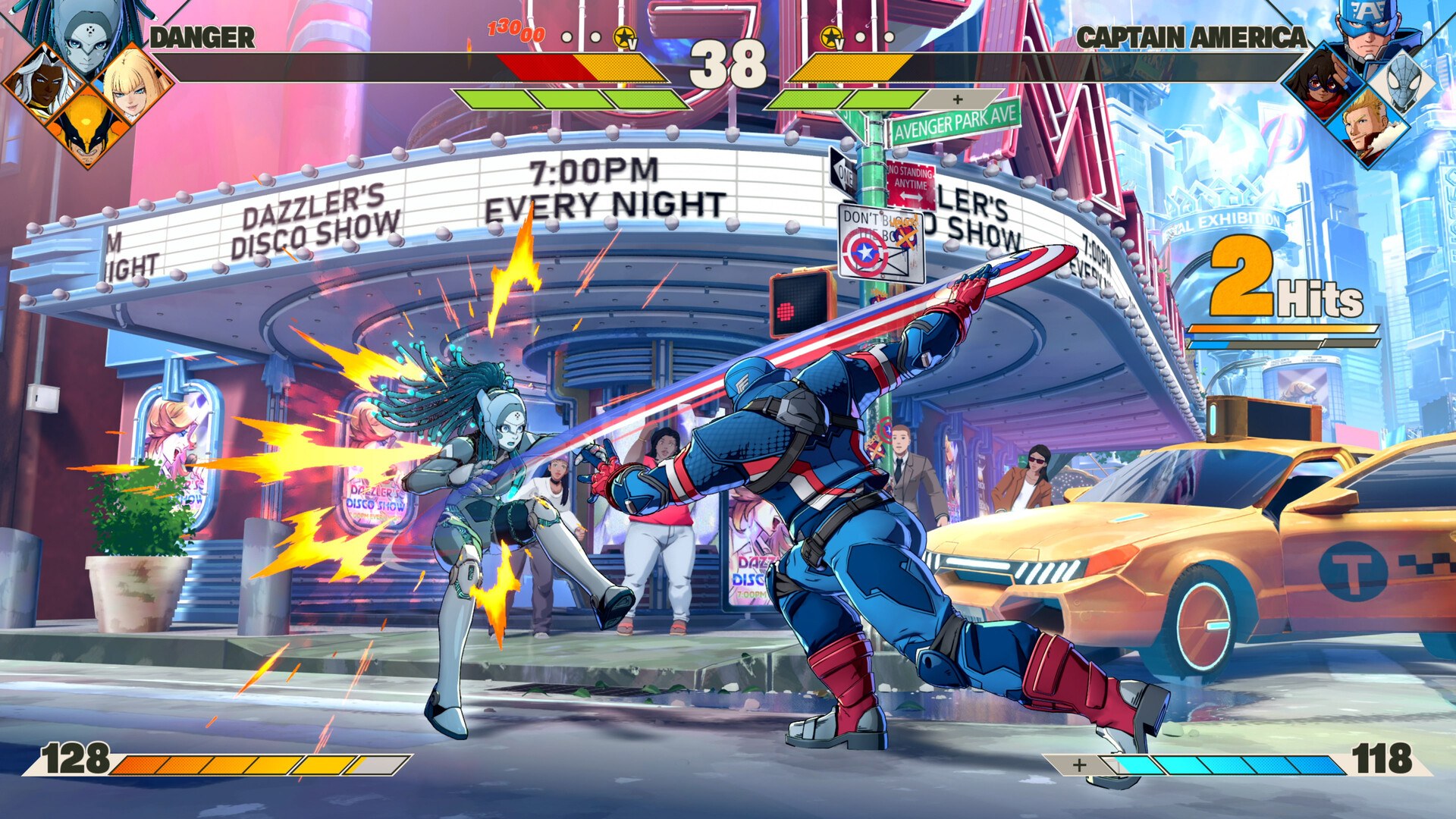
Sometimes the studio simply fixes it on its end. Arc System Works patched the crash out of Marvel Tōkon three weeks after the August update broke it, while Microsoft’s own entry was still open. If the problem looks like a graphics issue rather than a Windows one, try a clean GPU driver reinstall with DDU before you blame the update.
3. Pause updates so the fix doesn’t undo itself
If you are going to uninstall something, pause first. Otherwise Windows can download the same update again overnight.
- Go to Start > Settings > Windows Update.
- On the Pause updates control, select Pick a date and choose an end date. Microsoft allows up to 35 days from today.
- To extend, pick a new date before the pause ends. Each new end date can again be up to 35 days from the current date, and you can keep extending.
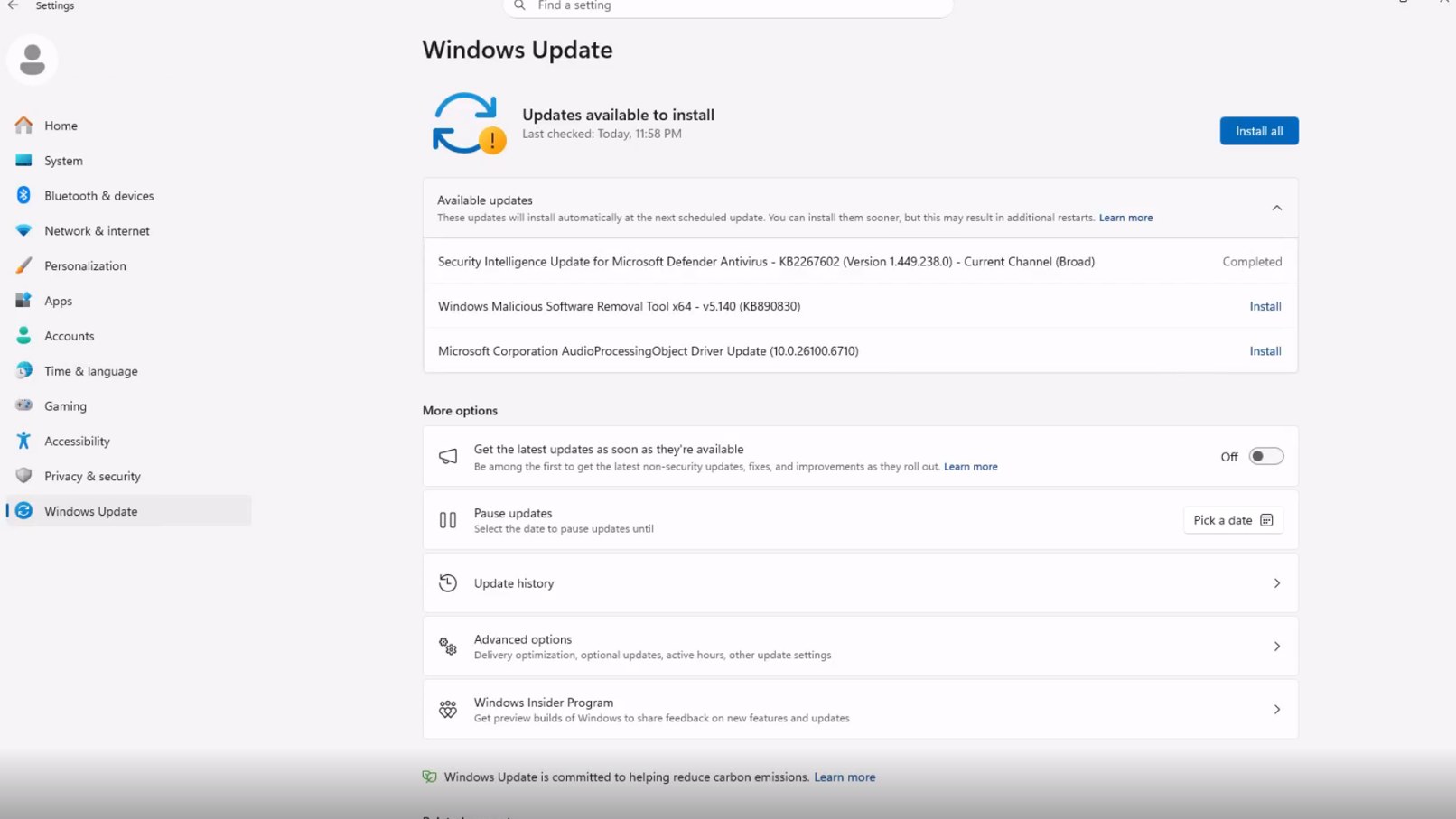
Microsoft notes that pausing cancels any update already in progress, holds back anything that needs a restart until the pause ends, and that updates resume automatically when the date passes. Set a reminder to check the known-issues page before then.
4. Uninstall the update, with your eyes open
Warning: uninstalling a monthly security update removes all of its security fixes, not just the change that broke your game. Microsoft’s page tells you to make sure you understand the risks first, and suggests Windows 11 users try reinstalling their current version of Windows before uninstalling a security update. Reinstall the update as soon as a fix ships.
- Go to Start > Settings > Windows Update > Update history.
- Under Related settings, select Uninstall updates.
- Select the update you want to remove, then select Uninstall, and restart when asked.
- Go back to Update history and confirm the KB number is gone. Microsoft says some updates can’t be uninstalled; if yours has no Uninstall option, you’ll need one of the recovery steps below.
5. If Windows won’t start, or a feature update is to blame
If the PC won’t reach the desktop, boot into the Windows Recovery Environment and choose Troubleshoot > Advanced options > Uninstall Updates, then pick the latest quality update or feature update. If BitLocker is on, have your recovery key ready, because Microsoft says you’ll need it for most recovery options.
If the trouble started after moving to a new version, such as the 26H2 update now rolling out, Microsoft’s recovery page says you can go back to the previous version for 10 days after upgrading. On 24H2 and later there is also point-in-time restore, which rolls the whole PC back to a recent restore point. Warning: that includes apps, settings and personal files, and anything changed after the restore point is lost, so back up first.
Our view: for most players, steps one to three solve it. Uninstalling a security update to play a game is a trade we’d only make for days, not weeks, with updates paused and the known-issues page bookmarked.