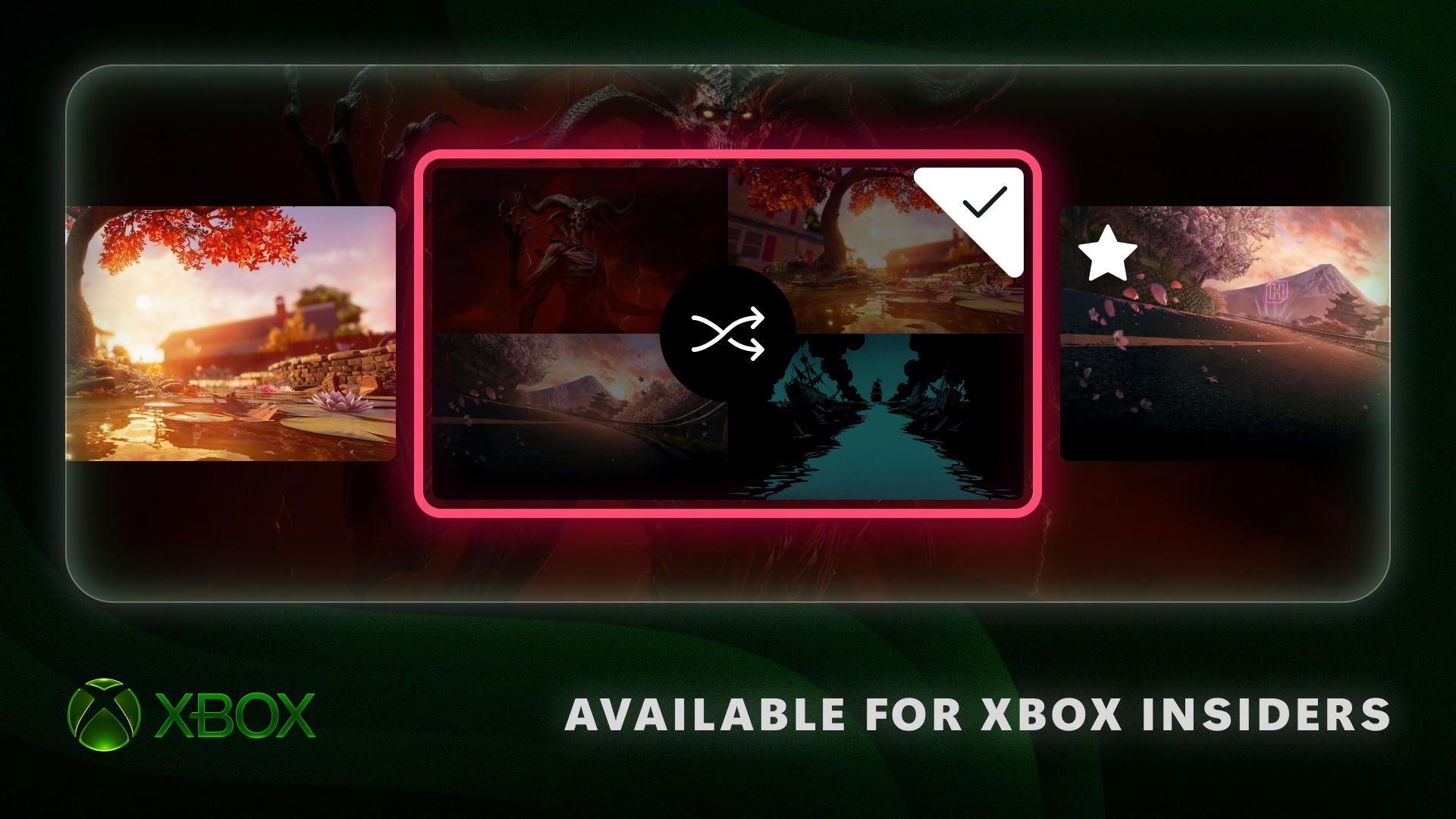
Rotate Home without effort
What this fixes: a Home screen that never changes unless you pick a new background by hand. Who it’s for: Xbox Insiders in Alpha Skip-Ahead, who can try three new personalization options first, including Xbox dynamic backgrounds shuffle for your saved favorites.
The options were announced on Xbox Wire on 12 November 2026. Alpha Skip-Ahead members get them first, and Microsoft says it will bring them to more Xbox Insiders and players over time. If you like tweaking your console, they sit alongside the five features from Xbox’s October update.
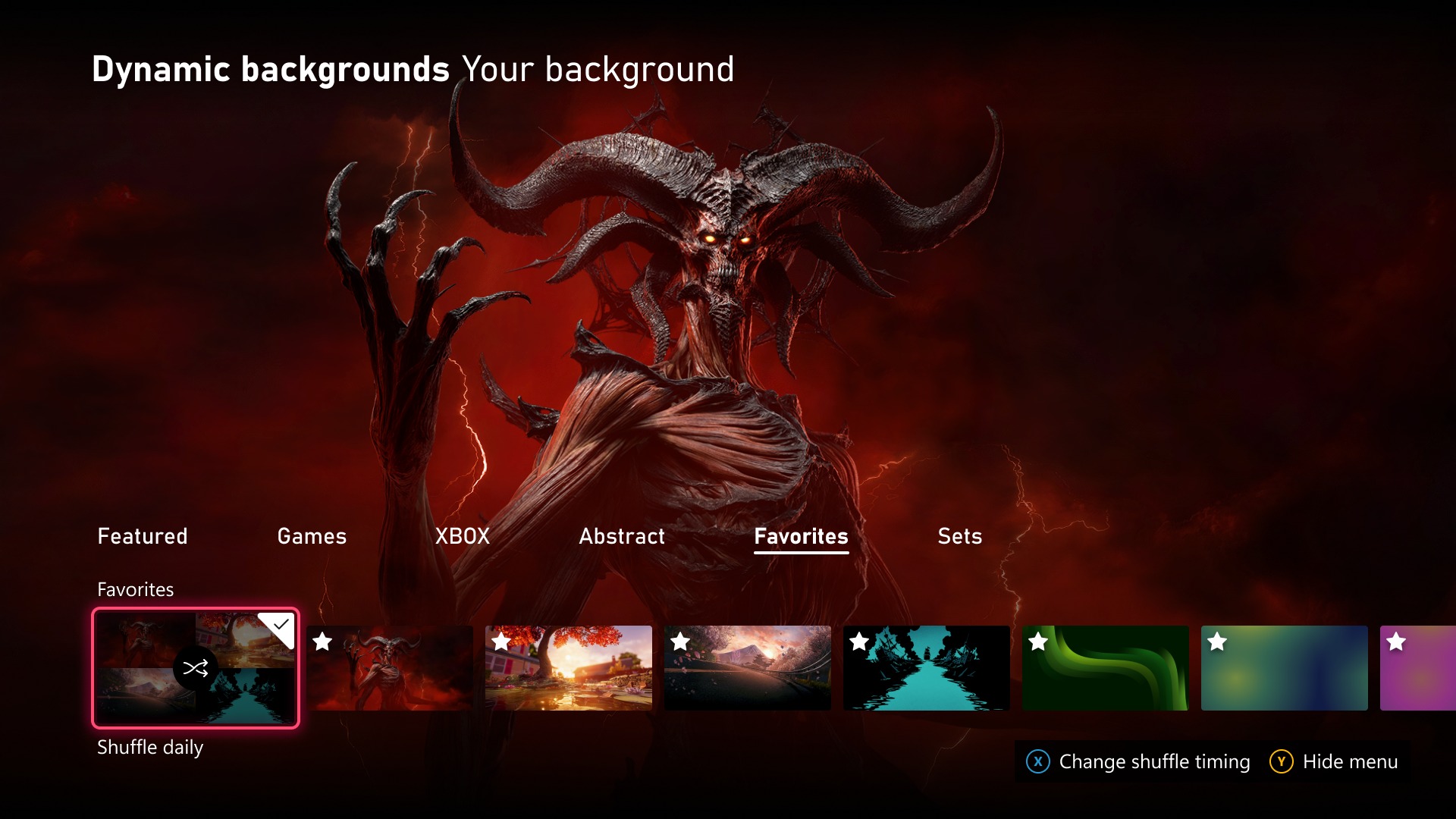
Save favorites, then shuffle them
- Go to Settings > General > Personalization > My background > Dynamic backgrounds > Dynamic backgrounds.
- Choose a background and press X. It lands in the new Favorites category.
- At the start of any background category, choose Shuffle.
- Pick how often it changes: each time you sign in, hourly, daily or weekly.
You can shuffle your favorites or a whole category. There’s a bonus for controller owners: if your controller comes with an exclusive background, like the Xbox Wireless Controller X25 Special Edition, saving it as a favorite lets you use it even when the controller isn’t connected.
We think this is the keeper of the three. It’s the only one that changes how Home looks day to day without you doing anything, and the favorites list means you only curate it once.
Disc games get their own shelf
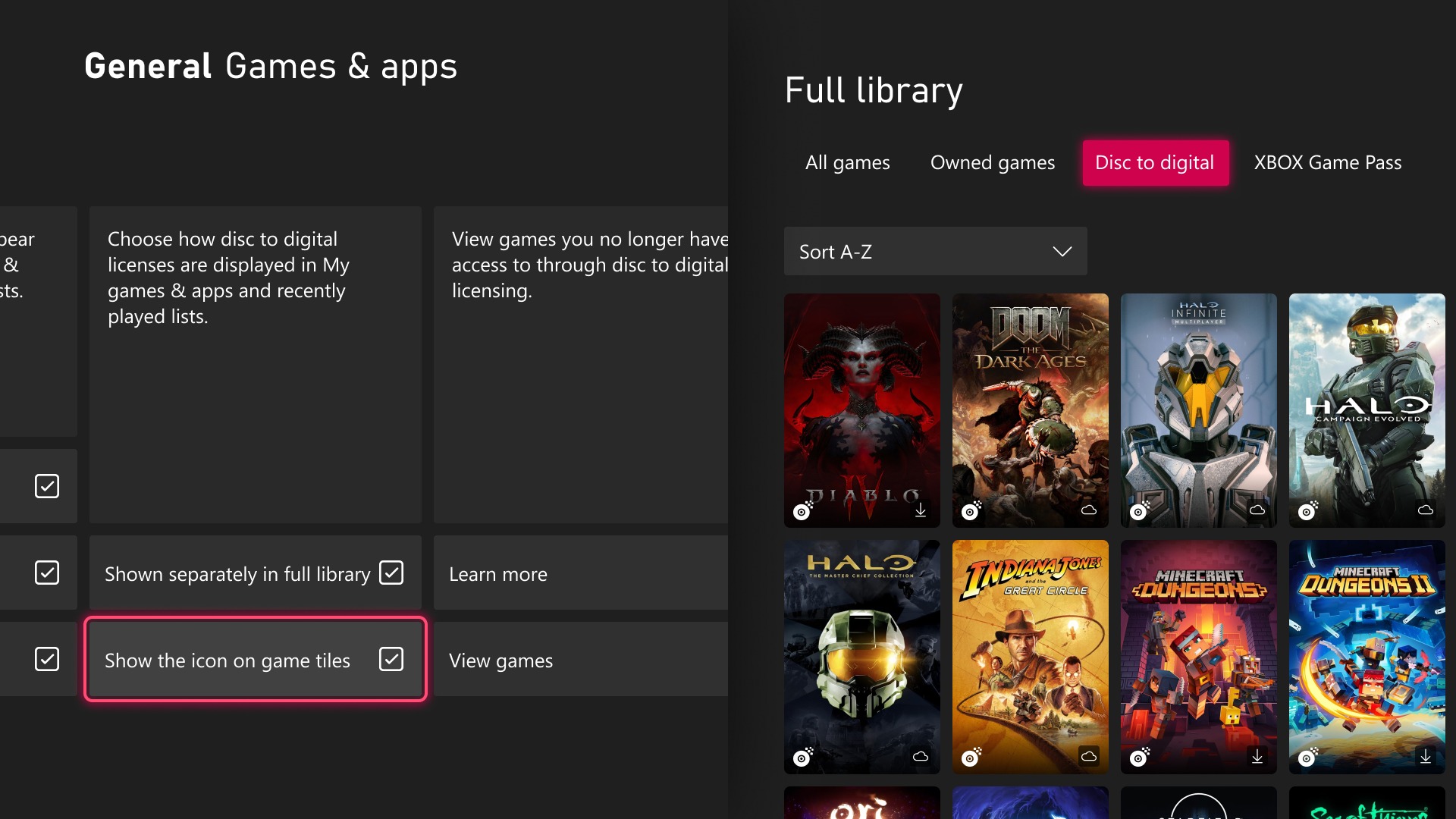
Since August, Xbox players have been able to claim digital licenses for their disc-based games. Now Insiders who’ve claimed a digital license from a disc-based game will see those games in a separate category in their full library.
Prefer them alongside your other owned games? Switch back in Settings > General > Personalization > Games & apps. From that same page you can also hide the digital license icon on game tiles.
Put the Guide on your side
Insiders can choose whether the Guide opens on the left or right side of the screen. Pick your side in Settings > General > Personalization > Guide.
Missing the menus? Check your ring
If none of these options appear on your console, you’re most likely not in Alpha Skip-Ahead yet, since that group gets them first. If you aren’t in the Xbox Insider Program at all, you join by downloading the Xbox Insider Hub, which is available for Xbox Series X|S and Xbox One, or for Windows PC. The updated Xbox PC app is another opt-in, covered in our guide to trying it.
Feedback goes to aka.ms/XBOXplayervoice, and Insiders who need support can join the Xbox Insider subreddit, where Xbox staff, moderators and other Insiders help out. Xbox is also asking whether you’re team left or team right on the Guide, and we’d tell it: left for muscle memory, right if you’re willing to relearn it.