Trust the histogram over the average
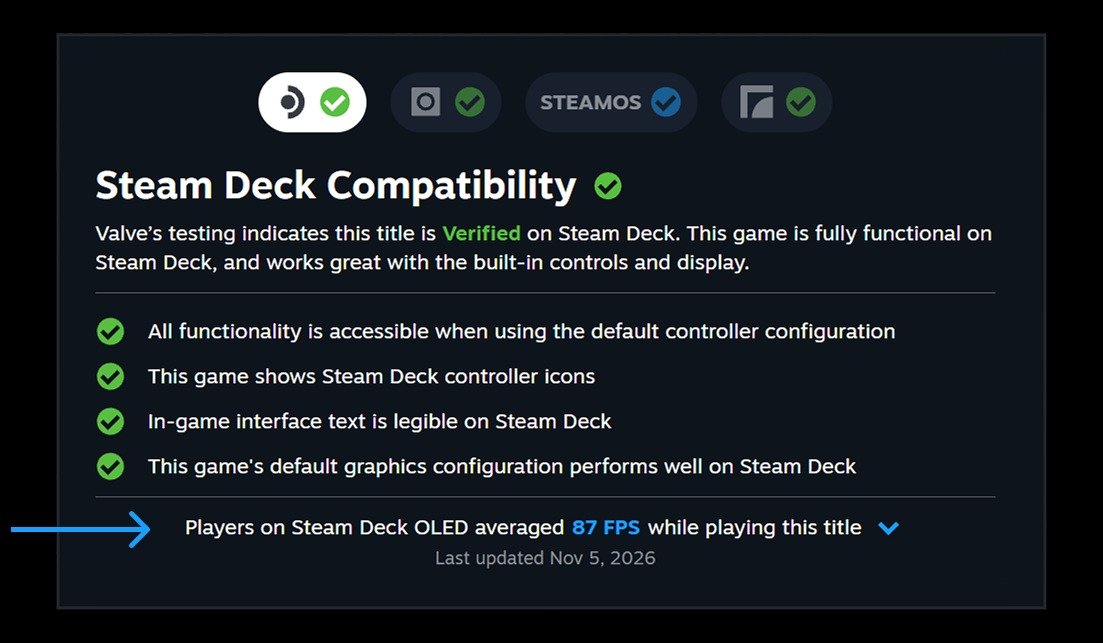
What this fixes: guessing whether a game really runs well on Valve’s handheld before you pay for it. Who it’s for: anyone weighing a purchase for Steam Deck play, and anyone who wants to control what their own Deck reports. Valve’s new Steam Deck framerate data puts an average on the store page, but an average can look healthy while the game hitches underneath. The histogram next to it is where the buying signal lives.
Finding it on the store page
In its Steam Deck Framerate post, Valve says the data is now on the store and in the Steam Client, on desktop and on Deck, for everyone (an update dated 11 November 2026). The steps are short:
- Open the game’s Steam Store detail page.
- Find the Steam Deck Compatibility section and click Learn more.
- Read the average framerate, then open the expandable detail view for the histogram.
You’ll only see it for games that have been tested for Deck compatibility, meaning Verified, Playable or Unsupported. Valve says thousands of games have framerate data already, and there’s a minimum threshold of anonymous data points before a game shows an average at all, so a quiet game may show nothing yet. Eurogamer reached the same reading of the steps. Valve adds that the data is also in your Steam Library on Steam Client Beta.
Why the low columns matter
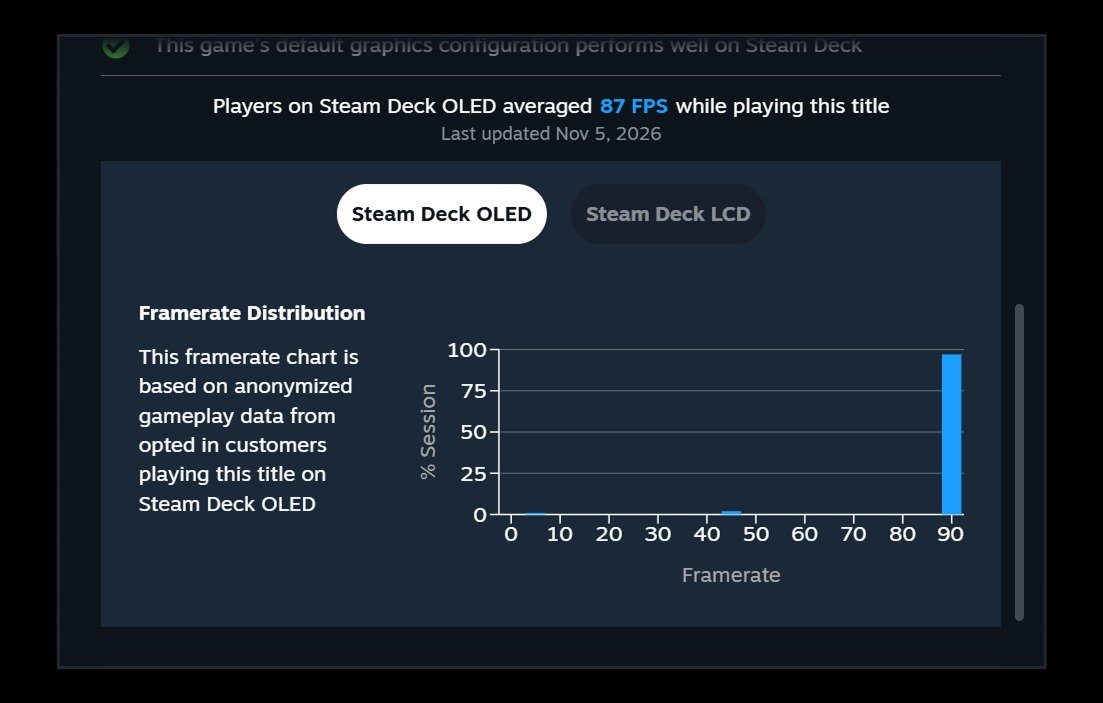
The histogram breaks down the percentage of data samples at each framerate. Valve says that shows how the average is produced and how often people hit hitches or stuttering, which appear as small columns at the lower framerate values.
Valve’s own FAQ shows why an average alone misleads. On a 90Hz display, a game that can’t hold 90 can drop to 45 and recover, a pattern like 90, 90, 45, 90, 90, 45 that averages 75. A game with an internal 60 FPS limit on a Steam Deck OLED at the default setting will bounce between 90 and 45 to hit 60. Two games can share an average of 75 and feel nothing alike. We’d read the shape first: one tall column at the target, or a smear of short ones.
Valve’s reason for adding this is worth quoting, because it admits the badge isn’t the whole story:
The current Steam Deck Verified compatibility rating is based on standardized test criteria, but it may not match every customer’s bar for acceptable gameplay.
Valve goes on to say an Unsupported game may be playable to some customers, and a Verified one may not reach a framerate some people prefer. GameSpot framed it as Valve acknowledging that verification is flawed. For a game like Truckful, which carries the Deck Verified tick, the histogram is the check on what that tick means in practice.
What the numbers leave out
Only data from Decks left at the default frame limit is used, which is 90 FPS on Steam Deck OLED and 60 FPS on Steam Deck LCD. Valve says it doesn’t account for custom in-game settings, though it has found the data consolidates around relatively narrow ranges, and idle time and invalid samples are filtered out. The data comes from Deck players who opted in; Valve says a majority have. It’s Deck-only for now, because every Deck has the same hardware. Eurogamer notes Valve intends to cover more devices later, though it’s unclear whether that will include desktop PCs.
Opting in or out of sharing
Valve says you’ll be prompted in the Steam Library, and you can change the choice at any time in Steam Account Settings > Data & Browsing > Anonymous Game Framerate Data. Switch it on to add your own playtime to the pool, or off to stop contributing.
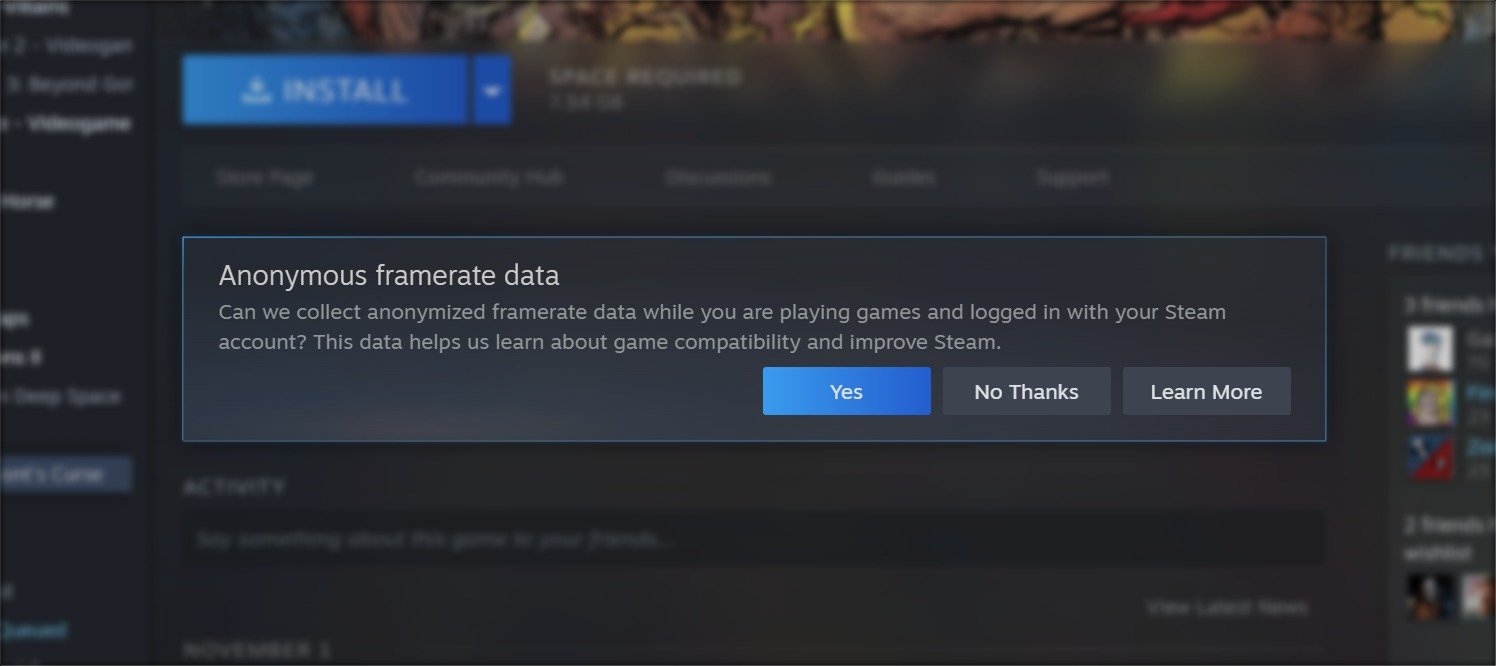
On the desktop, the prompt is currently on Steam Client Beta only, and Valve says it will ship to all customers in the future. Valve calls this update a stepping stone toward framerate data for more devices than the Deck. If you already run the beta, our note on a beta-client change for Deck covers another reason it matters to handheld owners.
Our view: skip the headline average, open the histogram, and be wary of any game with a spread of low columns. That’s the one thing the Verified badge never showed you.