Damaged game files
What this fixes: missing textures, missing content and crashes caused by damaged or incomplete game files. Who it’s for: anyone on Steam or the Epic Games Launcher, including Epic’s new Preview launcher.
Verified against Steam Support’s “Verify Integrity of Game Files” FAQ and Epic Games’ “How do I verify game files” article, which includes separate steps for the Preview launcher.
On Steam
- Restart your computer and launch Steam.
- Right-click the game in your Library, or click the gear icon on the far right of its Library page.
- Select Properties.
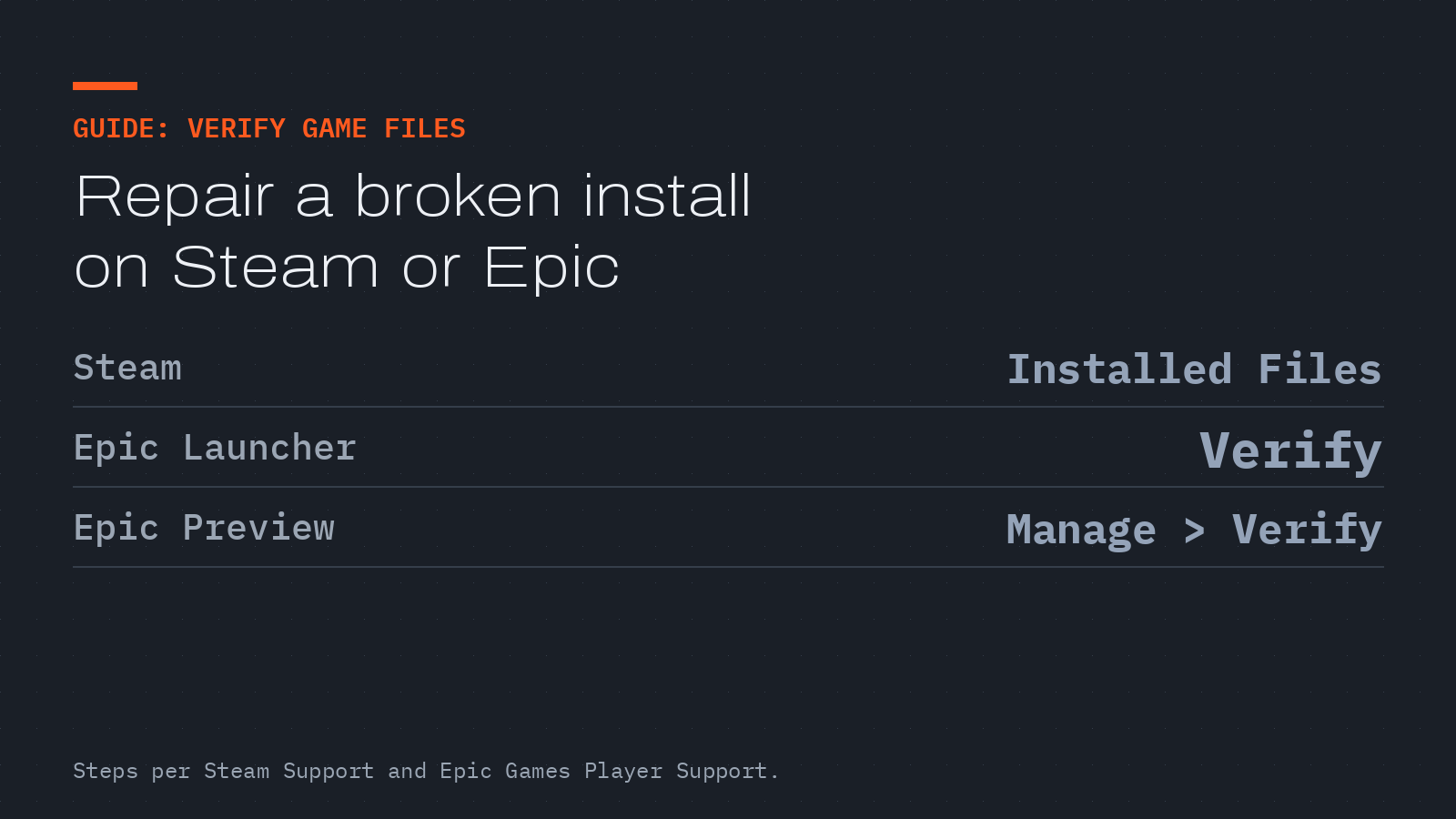
- Open Installed Files and click Verify integrity of game files.
- Wait. Steam says this can take several minutes, and it downloads replacements for anything that doesn’t match.
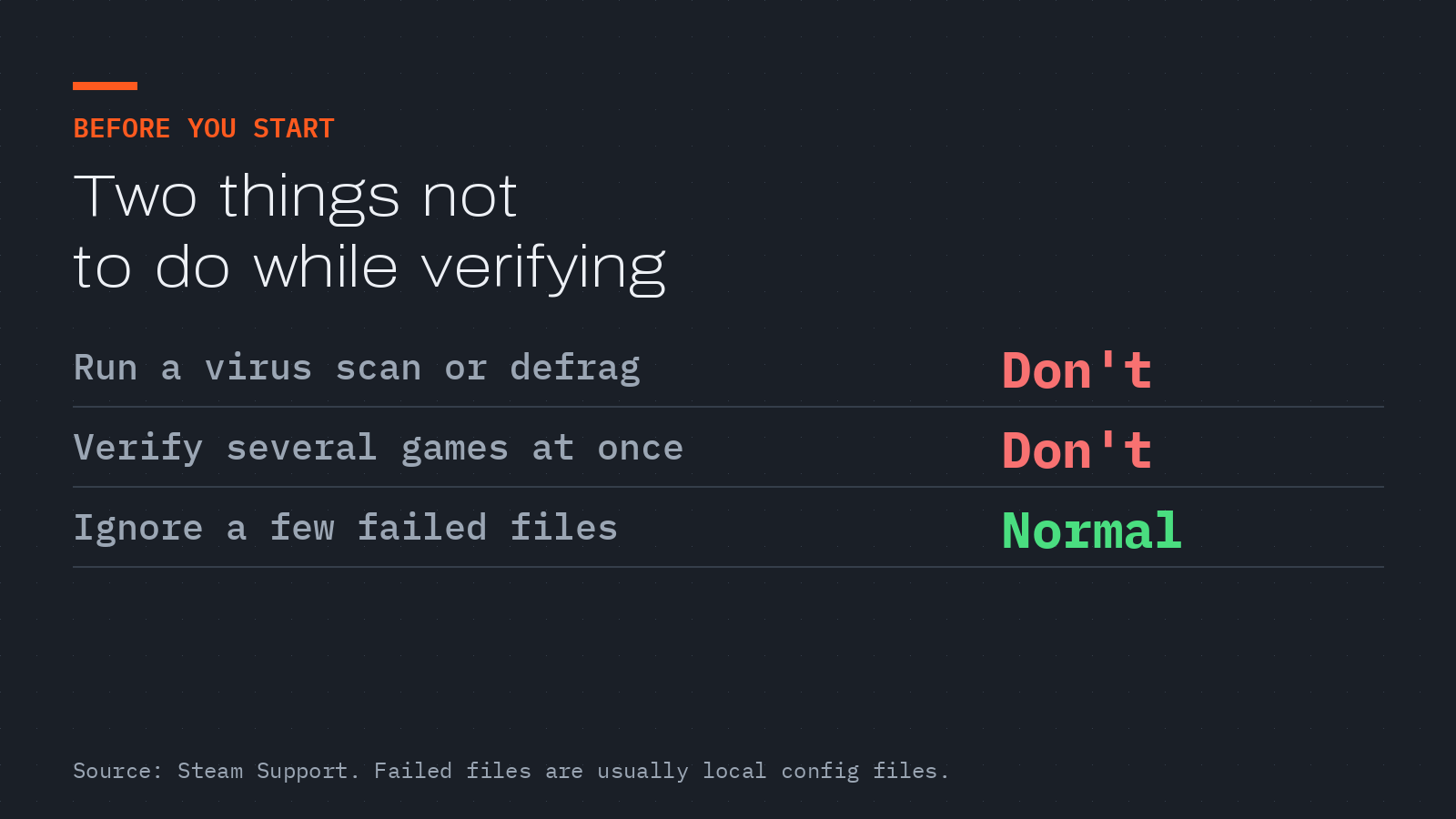
Steam says one or more files may fail to verify, and that this “is normal for most Steam games.” Those are local configuration files that shouldn’t be replaced, so you can ignore the message.
On the Epic Games Launcher
- Open the Epic Games Launcher and find the game in your Library.
- Click the three dots on the right of the game’s line.
- Click Verify and wait for validation to finish. Epic says it may take a while.
On the Epic Games Launcher Preview
- Open the Preview launcher and click Library in the top bar.
- Click the game you want to check.
- Click the three dots next to Play, then Manage.
- Click Verify and wait for the notification that it’s complete.
Epic says verifying won’t affect your saved data, and that these steps only apply to games with Epic Games as the source. If a game still crashes after a clean verify, the files aren’t the problem, and the next thing to look at is your graphics driver.